| An Introduction to the Wi-Fi (Wireless Fidelity) Here you will learn how to setup wifi network, how wireless fidelity works, hotspot security, vpn servers. Wi-Fi or wireless fidelity is meant for to be used when referring any type of 802.11 network, whether 802.11, 802.11a and dual band. Any products tested and approved as Wi-Fi certified by the Wi-Fi alliance are interoperable with each other. | |
| Typically, any Wi-Fi product using the same radio frequency will work with each other even if not Wi-Fi certified. Formerly the term Wi-Fi was used only in the place of the 2.4 GHz 802.11b standard in the same way Ethernet was used. Wi-fi short for wireless fidelity refers to a set of wireless networking technologies and more specifically referred to as any type of 802.11 network, 802.11b and 802.11a and dual band. The word Wi-Fi was built by an organization named as Wi-Fi alliance. A product that undergoes the Wi-Fi alliance analyses is given the name Wi-Fi certified. Wi-Fi rapidly gained the fame in the United States with the access point. These devices tested by the “Wi-Fi alliance” are used around the world and allow users to have Wi-Fi capable device like a PDA or Laptop to connect anywhere there is availability of Wi-Fi access point. There are currently three standards that are used to signify the speed of the connection. Both the 802.11a and 802.11b are the capable of 54 Mbps with 802.11a additional features. The most common standard is 802.11b/second because it can transmit the data at 11 Mbps. All these Wi-Fi connections are fast enough to allow the broadband internet connection. Wireless Fidelity is a fastest growing wireless technology that will probably be as common as phone lines and electric devices. Wi-Fi adds great levels of convenience and high level of production. Wireless fidelity is planned to be used with the wireless devices but it is most commonly used for internet access. With Wi-Fi you can connect computers in your home, office or anywhere without the need of wires. The computers can just connect to the network that uses radio waves. How does W-Fi work? Wi-Fi is the wireless technology to handle the networking/communication. Wi-Fi allocates internet connection globally and to be transmitted by the radio waves. Radio waves are the main cause of Wi-Fi. Radio waves are transmitted from antenna and Wi-Fi receivers pick them up. When a user receives the Wi-Fi signals, a wireless internet connection is produced and a user is prompted to provide the user name and password if required to establish a wireless connection. What is Wi-Fi Security? Wi-Fi maintains certain security issues. WEP or Wired Equivalent Privacy is used in the physical and data link layers. It was planned to provide the wireless security by protecting the data, while it transmits from one point to another. Wi-Fi networking usually maintained inside a building premises. The data transmission in the Wi-Fi is protected by Wireless LANs but due to the fact that data travels over the radio waves so there are chance that data can be exposed and capture. How to secure your WiFi network? When you buy a wireless router you might find an Installation CD by vendor that CD with guide you through a wizard on setting up router. Here are some suggestions that how can you setup security on the router without using the application software. 1. Open a new browser. 2. You may now type IP address of the router in your browser. The step here is where you can get the management system of the router. Due to different vendors, you need to lookup on your router’s manual for the IP address usually it may be 10.10.10.01, 196.168.1.1 or 192.168.0.1, 100.100.100.1 or something similar to those matches and the default password of the router. Every router management console is different from each other. Try exploring around and find the appropriate section to manage. 3. You should never forget this step to setup an administrative password. The step to set here is often not located in Security section; you will need to take a look at the utilities, user management or system settings. Find it and change the password immediately for any user account. 4. Enable Wireless security. To turn on your encryption look under the wireless security tab. The step over here will need you to either use WPA or WPA-PSK and this will only appropriate if the devices on your network supported it. Otherwise you will need 128-bit WEP. For WPA or WPA-PSK, you would have to type pass phrase/password into a piece of paper and transfer to thumb drive so that you can set the password in the client’s machines. 5. Change your SSID. You should not make your SSID this will be probably a default SSID, normally those who do not configure their SSID will have their router name such as “linksys”, “belkin”, “dlink” etc. Try changing it with someone menacing, which will be threat for them to connect. Like virus geek, virus spreader. Remember that you will need this SSID when you browse through the network from your client machines. You can find these settings in the section of Channel or SSID. 6. Save your configurations and settings by pressing the save changes or save settings button. You will need to save every change that you will make to the router in order to it can take effect and probably you will have to reboot your router multiple times. Congratulations, finally you have covered the basic settings for your Wi-Fi network Wi-Fi Hotspot Security: Using VPNs There are numerous security issues regarding the use of the public wireless networks but all of which can be overcome. One of the solutions for users, as brought up in Wi-Fi Hotspot security, is to use the VPN (Virtual Private Network) to secure the real time traffic of the Wi-Fi hot spot users. Many small to large businesses provide their employees with the VPN access. Although this access is typically put in place for employees to have the remote access to the corporate network in order to access the files and documents remotely. If you don’t have access to any VPN servers, create your own. By doing this you can remotely access the files from your office as well as other devices such as Wi-Fi video camera to keep an eye on the things while away. When using the software-based VPN server features in Windows XP Pro, the PC running the server has to be powered-on to access the home network from the Wi-Fi hotspot. VPN routers can cost as low as $70 to $130 and the popular models are Linksys, WRV200 and WRV5G. | |
Showing posts with label WIRELESS. Show all posts
Showing posts with label WIRELESS. Show all posts
Wednesday, February 24, 2010
What is a WiFi Network-How to Setup

An Overview of the Wireless Networking
Here you will find wireless networking tutorials, what is wifi, general security overview, wlans, wpans, wmans, wep and wireless access control overview. Whether you want to make a phone call from your mobile, received a message on your pager, checked your email from a PDA we have come across a wireless data or voice network.
If a user or a company wants to make a data portable then Wireless networking is the answer. A wireless networking system can avoid the downtime, which may be caused in the wired network. A wireless network is also save your time and efforts in installing the lot of cables.
Also, if you need to relocate a client machine in your office, you only need to move the computer with wireless network card.
Wireless networking is very useful in the public places, libraries, hotels, schools, airports, railway stations where one might find wireless access to the internet. A drawback in the wireless internet is that quality of service (QOS) is not guaranteed if there is any interference then the connection may be dropped.
Wireless Network Types
Wireless Local Area Networks (WLANS)
WLANS allow users in local area, such as in a university or a library to form a network and gain wireless access to the internet. A temporary network can be formed by a small number of users without the need of access point; given that they do not need to access the resources.
Wireless Personal Area Networks (WPANS)
There are two current technologies for wireless personal network Bluetooth and Infra Red. These technologies will allow the connectivity of personal devices within an area of 30 feet. Infra Red requires a direct line and the range is less as compared to Bluetooth technology.
Wireless Metropolitan Area Networks (WMANS)
WMANS allow the connectivity of multiple networks in a metropolitan area such as building in a city. The network connectivity is the alternative of copper or fiber cabling.
Wireless Wide Area Networks (WWANS)
WWANS or Wireless Area Networks can be maintained over large areas such as in different cities or between different countries, via multiple satellite systems or antenna sites. The types of system are called 2G systems.
The following table shows the range those different types of wireless network covers.
Network Meter
Personal Area Network 0-10
Local Area Network 0-100
Wide Are Network 0-10000
Security in Wireless Networking
The following different types of security methods are available in the wireless networking.
Wired Equivalent Privacy (WEP)
Wired Equivalent Privacy is intended to stop the interference of radio frequency that is signaled by unauthorized users and this security measure is most suitable for the small networks. There is not key management protocol and each key is entered manually into the clients that’s why this is very time consuming administrative task. The WEP security method is based on the RC4 encryption algorithm. In the WEP all the client computers and Access points are configured with the same encryption and decryption keys.
Service Set Identifier (SSID)
Service Set Identifier (SSID) acts a simple password by allowing WLAN network to be split up into different networks and each having a unique identifier. These identifiers are configured in the multiple access points. To access any of any networks, a computer is configured in such a way that each is having a corresponding SSID identifier for that network. If the SSID match between the two computers or networks then access is granted to each other.
Media Access Control filtering (MAC Access Control)
A list of the MAC addresses of the client computers can be inputted into an Access point and only those computers are granted to give the access to the network. When a computer makes a request, its MAC address is compared to the list of the MAC addresses to the Access point and based on this access permission granted to deny.
This is a good security method but it is mainly involved in the small wireless networks because there is more manual work is involved of entering the MAC address into the Access point.
Bluetooth
Bluetooth is a simple type of the wireless networking that operates in the digital devices, like mobiles phones, personal computers, PDA, Laptops, digital camera, MP3 players and other Bluetooth enabled devices to form a small network. In the Bluetooth technology eight devices can be connected to each other at the same time. Bluetooth can also be found in the headsets, hands-free kits, wireless keyboards and mouse. Bluetooth technology was invented by Ericsson in 1994 and after four years in 1998 some major mobile phone companies such as Nokia, Ericsson, Intel and Toshiba formed a group to promote this technology.
Bluetooth technology falls in the category of personal area networking because it operates in the range of 30 to 300 feet. Bluetooth uses the radio waves technology, which is not very expensive and has low power consumption. Many different companies are intended to add the Bluetooth chip in their digital devices. Bluetooth technology is getting very popularity because of its low cost and portability.
The Future of Wireless Networking
WLANS wireless networking type is very popular in home networking and more than 20 percent homes with broadband internet are using WLANS and this number is increasing. In a general estimate worldwide hotspots have now reached more than 30,000 and will grow about 210,000 in the next few years. Most large hotels already offer Wi-Fi and the business travelers are willing to pay wireless access. 802.11 is the next Wi-Fi speed standard is set to offer bandwidth around 108Mbps and is still under development. With the speed of 70 Mbps and a range up to 30 miles, the 80216 standard, known as WiMAX is sure to get boost.
Some Tips & Tricks
• When purchasing a wireless NIC card try to get one that is having external antenna. When you are out and using Wi-Fi enabled laptop, disable Microsoft file and sharing, which enables other computers in a network to access data and resources on your computer. In this way, your computer or laptop will be saved from hackers.
• If you are concerned about the interference from the other wireless access point set the AP and wireless computers to use a non-overlapping channel.
• Change the configuration interface password of the access point before you enable it.
• Only buy an access point that is having upgradeable capabilities. By this way you can take the advantage of security enhancements.
• Keep the access point up to date.
If a user or a company wants to make a data portable then Wireless networking is the answer. A wireless networking system can avoid the downtime, which may be caused in the wired network. A wireless network is also save your time and efforts in installing the lot of cables.
Also, if you need to relocate a client machine in your office, you only need to move the computer with wireless network card.
Wireless networking is very useful in the public places, libraries, hotels, schools, airports, railway stations where one might find wireless access to the internet. A drawback in the wireless internet is that quality of service (QOS) is not guaranteed if there is any interference then the connection may be dropped.
Wireless Network Types
Wireless Local Area Networks (WLANS)
WLANS allow users in local area, such as in a university or a library to form a network and gain wireless access to the internet. A temporary network can be formed by a small number of users without the need of access point; given that they do not need to access the resources.
Wireless Personal Area Networks (WPANS)
There are two current technologies for wireless personal network Bluetooth and Infra Red. These technologies will allow the connectivity of personal devices within an area of 30 feet. Infra Red requires a direct line and the range is less as compared to Bluetooth technology.
Wireless Metropolitan Area Networks (WMANS)
WMANS allow the connectivity of multiple networks in a metropolitan area such as building in a city. The network connectivity is the alternative of copper or fiber cabling.
Wireless Wide Area Networks (WWANS)
WWANS or Wireless Area Networks can be maintained over large areas such as in different cities or between different countries, via multiple satellite systems or antenna sites. The types of system are called 2G systems.
The following table shows the range those different types of wireless network covers.
Network Meter
Personal Area Network 0-10
Local Area Network 0-100
Wide Are Network 0-10000
Security in Wireless Networking
The following different types of security methods are available in the wireless networking.
Wired Equivalent Privacy (WEP)
Wired Equivalent Privacy is intended to stop the interference of radio frequency that is signaled by unauthorized users and this security measure is most suitable for the small networks. There is not key management protocol and each key is entered manually into the clients that’s why this is very time consuming administrative task. The WEP security method is based on the RC4 encryption algorithm. In the WEP all the client computers and Access points are configured with the same encryption and decryption keys.
Service Set Identifier (SSID)
Service Set Identifier (SSID) acts a simple password by allowing WLAN network to be split up into different networks and each having a unique identifier. These identifiers are configured in the multiple access points. To access any of any networks, a computer is configured in such a way that each is having a corresponding SSID identifier for that network. If the SSID match between the two computers or networks then access is granted to each other.
Media Access Control filtering (MAC Access Control)
A list of the MAC addresses of the client computers can be inputted into an Access point and only those computers are granted to give the access to the network. When a computer makes a request, its MAC address is compared to the list of the MAC addresses to the Access point and based on this access permission granted to deny.
This is a good security method but it is mainly involved in the small wireless networks because there is more manual work is involved of entering the MAC address into the Access point.
Bluetooth
Bluetooth is a simple type of the wireless networking that operates in the digital devices, like mobiles phones, personal computers, PDA, Laptops, digital camera, MP3 players and other Bluetooth enabled devices to form a small network. In the Bluetooth technology eight devices can be connected to each other at the same time. Bluetooth can also be found in the headsets, hands-free kits, wireless keyboards and mouse. Bluetooth technology was invented by Ericsson in 1994 and after four years in 1998 some major mobile phone companies such as Nokia, Ericsson, Intel and Toshiba formed a group to promote this technology.
Bluetooth technology falls in the category of personal area networking because it operates in the range of 30 to 300 feet. Bluetooth uses the radio waves technology, which is not very expensive and has low power consumption. Many different companies are intended to add the Bluetooth chip in their digital devices. Bluetooth technology is getting very popularity because of its low cost and portability.
The Future of Wireless Networking
WLANS wireless networking type is very popular in home networking and more than 20 percent homes with broadband internet are using WLANS and this number is increasing. In a general estimate worldwide hotspots have now reached more than 30,000 and will grow about 210,000 in the next few years. Most large hotels already offer Wi-Fi and the business travelers are willing to pay wireless access. 802.11 is the next Wi-Fi speed standard is set to offer bandwidth around 108Mbps and is still under development. With the speed of 70 Mbps and a range up to 30 miles, the 80216 standard, known as WiMAX is sure to get boost.
Some Tips & Tricks
• When purchasing a wireless NIC card try to get one that is having external antenna. When you are out and using Wi-Fi enabled laptop, disable Microsoft file and sharing, which enables other computers in a network to access data and resources on your computer. In this way, your computer or laptop will be saved from hackers.
• If you are concerned about the interference from the other wireless access point set the AP and wireless computers to use a non-overlapping channel.
• Change the configuration interface password of the access point before you enable it.
• Only buy an access point that is having upgradeable capabilities. By this way you can take the advantage of security enhancements.
• Keep the access point up to date.
Friday, February 5, 2010
Setting Up a Wireless Network with Windows 7
Setting Up a Wireless Network with Windows 7
The objective of this article is to set up a simplified home network using a mix of a Vista desktop PC, a laptop running Windows 7 beta, and a laptop running Windows XP. Defining features of this network will be the lack of network passwords for local connections (both wirelessly or wired) and no single “boss” computer. Devices on the network will act as peers – no computer will rely on another computer to be present on the network – in order to reach the Internet, but it won’t be an ad-hoc network. File and folder sharing, of course, will depend on other computers being present, but we’ll look at specifying what folders we’ll share with others and these we will share and share alike.
Router Configurations
The most boss-like object in the network is the wireless router. For our purposes, we’ll presuppose that each computer can connect to the router. In our test network, the Vista desktop computer has the wired connection to the router and was used to set the router up. It’s very important that the router is not left at defaults and is set up properly because the security of the simplified network is based on the router and on having both a strong network password and an encrypted connection. By strong password, we mean a mix of letters and numbers that can’t be guessed or easily “cracked” by brute force. Your router setup program may suggest a pseudo-random password based on the encryption you selected. This is very safe to use. By encryption, we mean Wi-Fi Protected Access, or WPA-PSK. The “PSK” part stands for “pre-shared key,” which is that secure password.
Since setup varies and you’ll need to use the documentation for your router to perform it, we’ll only briefly touch further on this. You want to set it to broadcast your network name or service set identifier (SSID). You’ll want to make sure that each computer on the network can reach the Internet. A somewhat common problem you may encounter is that a PC can connect wirelessly to the router and seems to be passing some data when you view “Status” for the device, but the web browser can’t reach any web pages.
This can mean that the computer was set up by default for wireless networking (with Microsoft networks, of course), but not for Internet access. It is, however, easy to fix.
Since setup varies and you’ll need to use the documentation for your router to perform it, we’ll only briefly touch further on this. You want to set it to broadcast your network name or service set identifier (SSID). You’ll want to make sure that each computer on the network can reach the Internet. A somewhat common problem you may encounter is that a PC can connect wirelessly to the router and seems to be passing some data when you view “Status” for the device, but the web browser can’t reach any web pages.
This can mean that the computer was set up by default for wireless networking (with Microsoft networks, of course), but not for Internet access. It is, however, easy to fix.
Instructions for Windows XP
Windows XP: Start → Connect To → Show All Connections. Select the “Wireless Network Connection” by right-clicking it and selecting “Properties.” Under the General tab, in the main window, you’ll see “This connection uses the following items.” Scroll down to see if “Internet Protocol (TCP/IP)” is in the list. If it is not, click the “Install” button and then “Protocol.” You’ll see “Internet Protocol TCP/IP” in the list and can highlight it and click OK to add it. (If you see “Microsoft TCP/IP version 6” in the list, it’s fine to add it as well.) Back in the Properties dialog, scroll down and find “Internet Protocol (TCP/IP)" in the list. Highlight it and then click the “Properties” button. “Obtain an IP address automatically” and “Obtain DNS server address automatically” should both be checked. Click OK to close the dialog, and then, for best results, reboot your PC. When it restarts, connect to the network, and you should able to browse the web.
Vista: Start → Network → Network and Sharing Center (or Start → Control Panel → Network and Sharing Center) → Manage Network Connections. Right click “Wireless Network Connection” and proceed as described above for Windows XP.
Windows 7: Start → Control Panel →View Network Status and Tasks → Change Adapter Settings → Wireless Network Connections. Right-click Properties, and then the steps are the same as in Vista and Windows XP.
In each case, remember to do the same steps (enable automatic IP and DNS) for Internet Protocol version 6 as well before saving and rebooting.
Hopefully, at this point, all the computers will be able to connect to the router and access the Internet. We are ready to start setting up the network.
Hopefully, at this point, all the computers will be able to connect to the router and access the Internet. We are ready to start setting up the network.
Setting Up the Simplified Network
There are only a couple of rules to follow here. The computers on the network must each have unique names and must belong to the same “workgroup.” “WORKGROUP,” in fact, is often the default name assigned by Windows. However, we want to use a more unique group name of our own. This is very useful if you’ve had previous networks running on some of the computers. A different group name tells Windows to release some of its preconceived notions about the network setup, and this is an important part of creating the simplified network.
To change the computer name and group name in Windows XP, right-click “My Computer” and select “Properties.” In the “Computer Name” tab, click the “Change” button. Enter a unique computer name, if the computer does not already have one, and then enter the new workgroup name. When you click OK, Windows will welcome you to the group and advise you to reboot the PC.
To change the computer name and group name in Windows XP, right-click “My Computer” and select “Properties.” In the “Computer Name” tab, click the “Change” button. Enter a unique computer name, if the computer does not already have one, and then enter the new workgroup name. When you click OK, Windows will welcome you to the group and advise you to reboot the PC.
To change the computer name and group name in Vista and Windows 7, right-click “Computer” and select “Properties.” Expand the dialog downward if necessary and find “Computer name:” At far right, click “Change settings.” In the System Properties dialog under “Computer name,” click the “Change” button. Enter your unique computer network name (or keep the old one, as long as it's unique), enter the same group name you used previously, and leave “Domain” blank. Click OK, and Windows will welcome you to the group and ask for a restart.
And that’s it – the basics of setting up our network. At this point, all the computers are in the same workgroup and will recognize each other. Each will be able to connect to the router and surf the net. Each will be able to access already-existing shared and “public” folders on other devices on the network. Now it’s time for some refinements.
And that’s it – the basics of setting up our network. At this point, all the computers are in the same workgroup and will recognize each other. Each will be able to connect to the router and surf the net. Each will be able to access already-existing shared and “public” folders on other devices on the network. Now it’s time for some refinements.
Read more: http://www.brighthub.com/computing/hardware/articles/26291.aspx#ixzz0ejodYVSQ
How To Setup A Wireless Profile On Windows 7
How To Setup A Wireless Profile On Windows 7
on most of Windows versions, the wireless bar is located at the right hand side of the system bar, close to the system clock:

If you click on the wireless bar, the currently available wireless window come up:
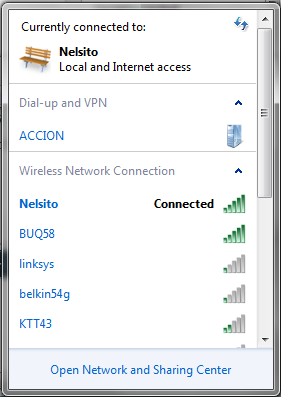
click on “Open Network and Sharing Center” that should bring you to the control panel network management utility:
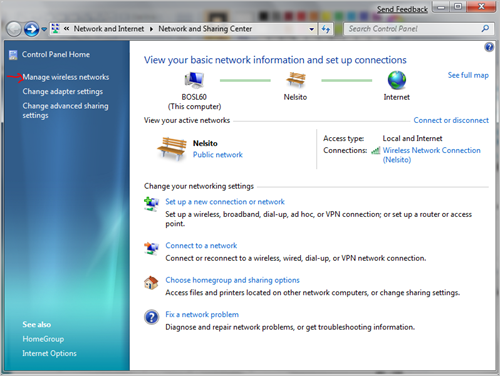
click on “Manage wireless networks” as my nice arrow indicates (:> clicking on that should bring you to the wireless network utility, click on Add:
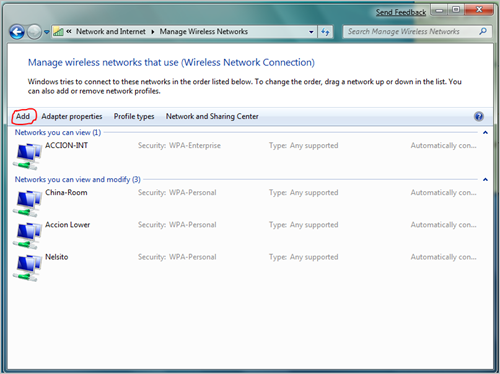
The manually connect to wireless wizard will come up. click on Manually create a network profile:

Enter the wireless access point on the next window that comes up:
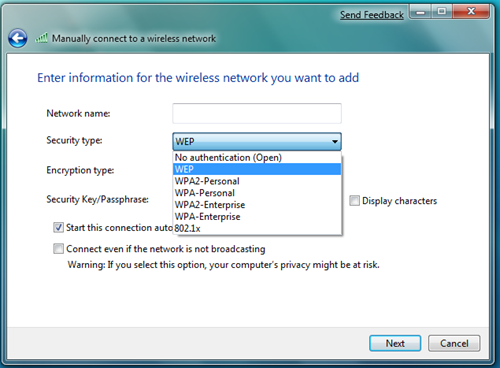
Enter your settings accordingly, and if you wish to, check the “Start this connection automatically” click Next after entering your information. and that should setup the local profile for your wireless on your laptop.
Subscribe to:
Posts (Atom)